- Flashing N9 -
This tutorial tries to explain most of the things related to Nokia N9 flashing. I tried to combine everything available on the Internet into one, idiot-proof article.
1) Pre-requirements
First of all, you need to install the flashing tool we need - Flasher. Flasher for Harmattan works on Linux, Windows and Mac OS X. Personally, for this kind of things, I think Linux is the best, but Windows & OS X work as well. Another thing is your USB port. It is widely known, that USB > 2.0 usually causes big problems with old phones (no matter what). You may experience weird things like BSODs. Unless your PC doesn't have one - use USB 2.0.
Okay, that's the introduction. Let's start.
I have collected the needed tools here. Download the version appropriate for your device and system. I.e:
- WinFlasher_3.12.1.exe - Windows x86 / x64
- MacFlasher_3.12.1.dmg - OS X x86 / x64
- flasher_3.12.1_amd64.deb - Debian-based Linux - x64
- flasher_3.12.1_i386.deb - Debian-based Linux - x86
There is also a bonus for Arch Linux-users - an installable AUR package.
Install the choice as an any other app/package.
2) Firmware files
You can't flash phone without proper firmware, right? So let's download it.
I have collected many of files on this MEGA folder. But we need to know which firmware to use...
First, you CAN'T downgrade firmware on your phone. What does it mean?
In short. We have the "major" version of firmware - PR 1.X. Then, we have the "variant" / "minor version" - for example, 001 or 009 stands for "Europe", 003 for China. Above 009, there are operator's / country-specific variants.
"We can't downgrade" - what does it mean? Basically, you can't flash older version of firmware than the one you have currently installed. Some examples:
- PR 1.3 001 -> PR 1.3 009 - allowed
- PR 1.3 003 -> PR 1.3 001 - not allowed
- PR 1.2 001 -> PR 1.3 001 - allowed
- PR 1.3 001 -> PR 1.1 001 - not allowed
- PR 1.1 009 -> PR 1.3 001 - allowed
How to check your firmware version? We have two options.
-
If your phone is working normally, open Settings -> About phone. You should see something like it:
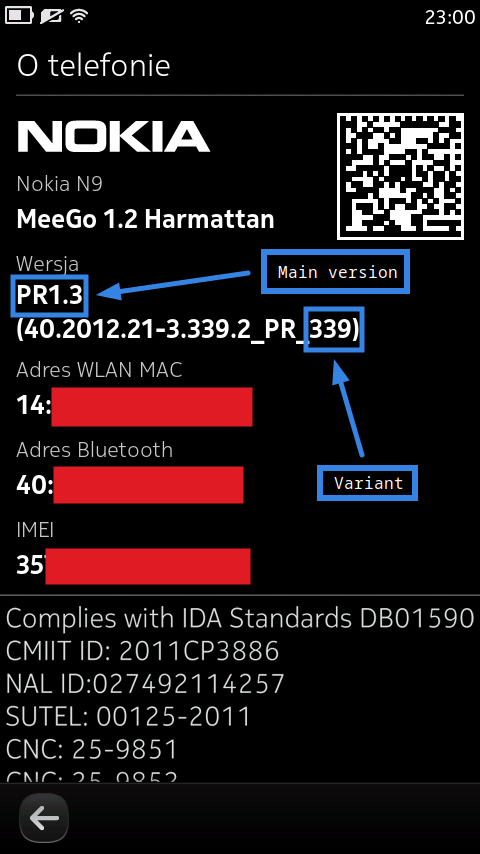
As you can see, I'm running PR 1.3, variant 339.
-
Otherwise, if your phone doesn't boot, we will need to use Flasher. I will discuss that in the next paragraph.
Okay, so now we are ready to download proper firmware. Get it from MEGA link above, and eMMC file from this link.
To make things easier, rename the firmware file to "main.bin", and eMMC file to "emmc.bin".
If you run Linux / OS X, the files can be in the Downloads folder. On Windows, move the .bin files to C:\Program Files\Nokia\Flasher
3) Flasher - explanation
In this paragraph I will try to explain the most used useful commands and/or arguments of Flasher, its general syntax etc.
Firstly, Flasher is a command-line program. That means you don't any GUI! You will need to use a terminal emulator - usually Command Prompt on Windows and Terminal on Linux / OS X.
Secondly, Windows users have a bit harder life. Before anything, run Command Prompt as administrator (right click, "Run as administrator") and type the following command: cd C:\Program Files\Nokia\Flasher.
Thirdly, Linux users should prefix the commands with sudo, to gain root privileges.
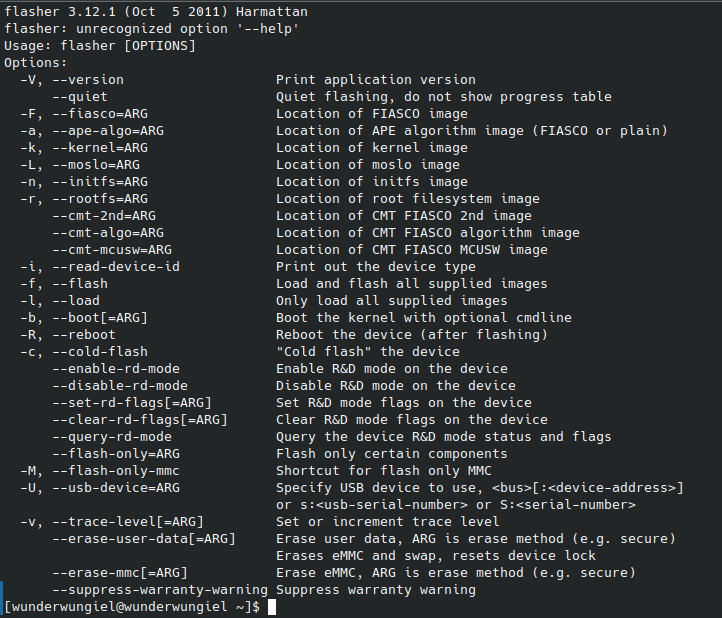
flasher --help
This command can be used to show all Flasher's command.
flasher -i
This command is used to collect informations about the phone. Use it for checking current firmware, if your phone doesn't boot. Example output:
Suitable USB interface (bootloader/phonet) not found, waiting...

Found device RM-696, hardware revision 1601

NOLO version 2.3.6

Version of 'sw-release': DFL61_HARMATTAN_40.2012.21-3.339.2_PR_339

Success
"40.2012.21-3" stands for PR 1.3. So we know we're running PR 1.3 339.
flasher -F
This is the argument used for specifying the flashing file (i.e. our main.bin). Example usage:
flasher -F main.bin
(keep in mind it won't do anything yet - we only specify flashing file).
flasher -f
This is the actual flashing argument that says "Flash!" to Flasher. I.e.:
flasher -F main.bin -f
would flash phone with main.bin file. We will discuss it later.
flasher -R
Reboots phone. As simple as that.
To use any Flasher command, power off your phone, run the desired command and connect your phone using USB cable.
Let's keen on that for now. We will try to actually flash our Nokia N9 now...
4) Flashing
Here we go.
You should already have downloaded the needed files - i.e. Flasher, "main.bin", "mmc.bin". Let's proceed with flashing!
Flashing will erase all your apps, games, settings and mass memory data (images, music, videos) too, if you flash eMMC!!! Backup everything and save it in a safe place, like your PC, NAS or cloud storage!
-
Run Command Prompt as administrator (right click, "Run as administrator") or Terminal. If you're running Windows and using Command Prompt, type the following command first:
cd C:\Program Files\Nokia\Flasher. -
Power off your Nokia N9, prepare USB cable. The original one, made by Nokia should be the best. Close all other Nokia-related apps like Phoenix, PC Suite, Nokia Suite, Infinity BEST. It's an important step, as they can conflict with Flasher and interrupt the USB connection.
-
Decide, which operation you want to go with. I will discuss few flashing 'ways' of flashing.
- Replace operating system - deletes apps, settings, games, but preserves photos, images, videos.
- Comprehensive reset - deletes everything.
- Zeroize device - erases (not just deletes) everything. Nothing can be restored later.
-
Flash. Select desired section.
-
Replace operating system:
flasher -F main.bin -f -
Comprehensive reset:
flasher -F main.bin -F mmc.bin -f -
Zeroize device:
flasher -F main.bin -F mmc.bin --erase-user-data=secure --erase-mmc=secureAs always - prefix the commands with
sudoin Linux.
-
-
Typical errors - short FAQ
-
cmt-mcuswflashing fails. Most likely you have a Chinese or refurbished N9. Their hardware is a bit different. You need to getDFL61_HARMATTAN_40.2012.21-3_PR_LEGACY_003-OEM1-958_ARM.binfile, and flash it using the following:flasher -F DFL61_HARMATTAN_40.2012.21-3_PR_LEGACY_003-OEM1-958_ARM.bin --flash-only=cmt -fIf it completes successfully - the phone should be fixed.
-
Downgrade disallowederror:You're trying to downgrade. Ensure the firmware version you're flashing is newer or the same than the current one.
-
Flasher doesn't recognize the phone:
Here the thing is a bit complicated. In most cases, Linux users shouldn't have problems, as long as they have
libusb-*packages installed. Windows is a bit more complicated. You need to check many different workarounds.-
Install "Nokia EthernetRNDIS based Device" driver. Get it here, install using Device Manager.
-
Install "Lumia Software Recovery Tool" [Windows 7 only].
-
-
- About -
2026 Wunder Wungiel